Tutorial
This section will go over how to use this tool.
Disclaimer: This tool does not take holidays, wellness days, or "Follow Monday Schedule" edge cases into consideration. You will still have to adjust those manually in your calendar if you wish.
Step 1: Exporting your registered courses from Workday
First, log into Workday And then go to the Academics app. Press on the gear icon and click on Download to Excel -> Download.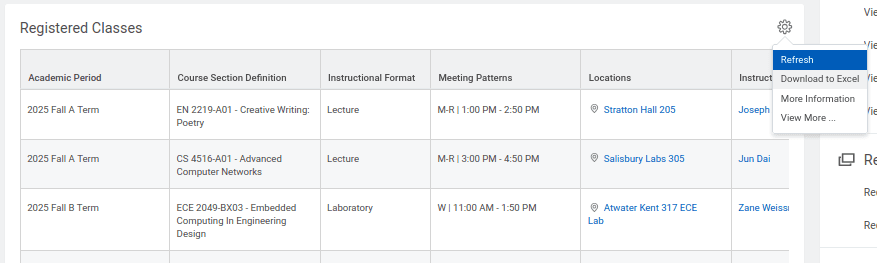
 Your exported Excel sheet should look something like this: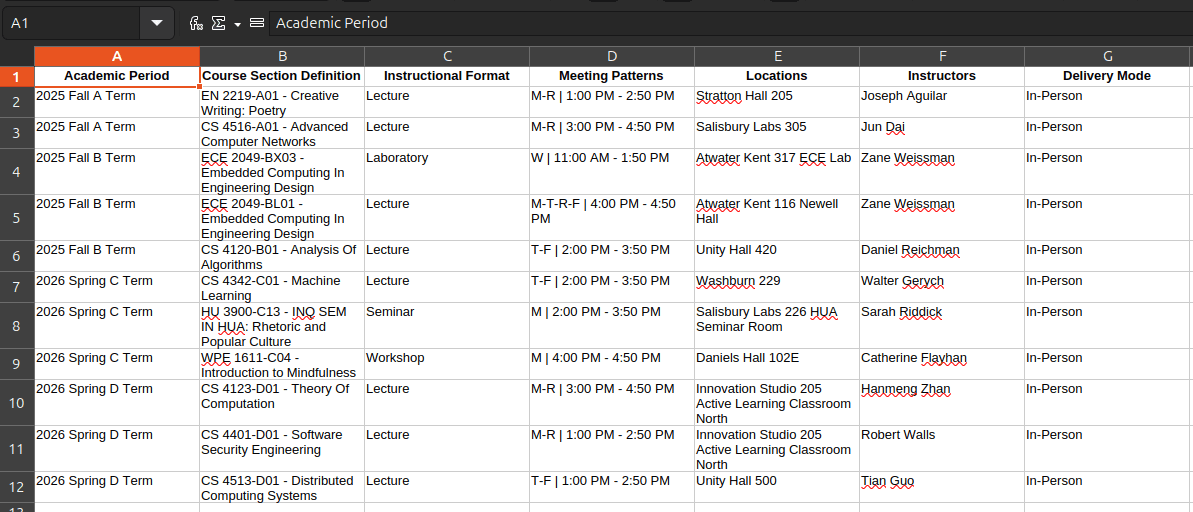
Step 2: Upload the Excel file to this tool
Now that you have the Excel file, you can drag and drop the file to the form above After submitting, it should automatically download a
 .ics file for you.
Step 3: Uploading .ics to Outlook
While this file format is supported by many calendar app, this tutorial will only cover using Outlook. First, go to Outlook calendar and press the Add calendar button. You can also instead visit the add calendar page.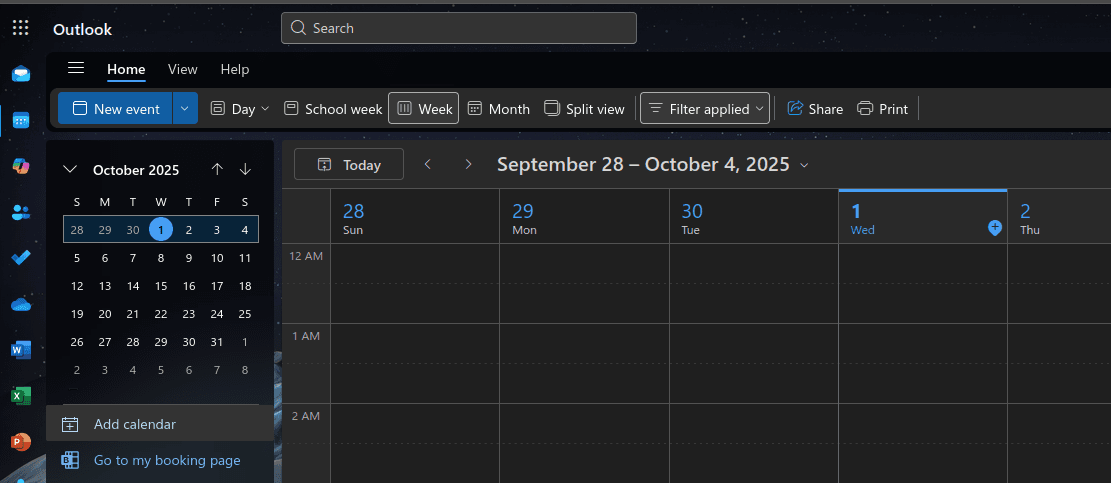 Then, click on Upload from file and upload your
 .ics file. Select your calendar and press Import, and that's it!
Now, you should get 15 minute reminder before events, have categorized events, and have event locations set!
PRO TIP: create a new calendar that you use to upload your classes. You can do so by pressing Create blank calendar on the Add calendar menu. That way, if you frequently switch courses, or would like to just toggle off all registered courses, you can just delete only that calendar.
Enjoy!